
For designers & developers

Turn any website into a polished social media video.

Add your website link. PreviewKit records it automatically, puts it inside a beautiful mockup, and lets you export the finished video.

Made with PreviewKit in 30s

Made with PreviewKit in 30s

From raw screen recording to ready-to-post.

Paste your website URL or upload a recording. Choose a mockup, customize the background, pick your size, and export.

Raw website recording

Finished PreviewKit video

Everything between raw footage and a finished video.

A focused editor built for one outcome — not a timeline suite you have to learn. Every control is one click from the canvas.
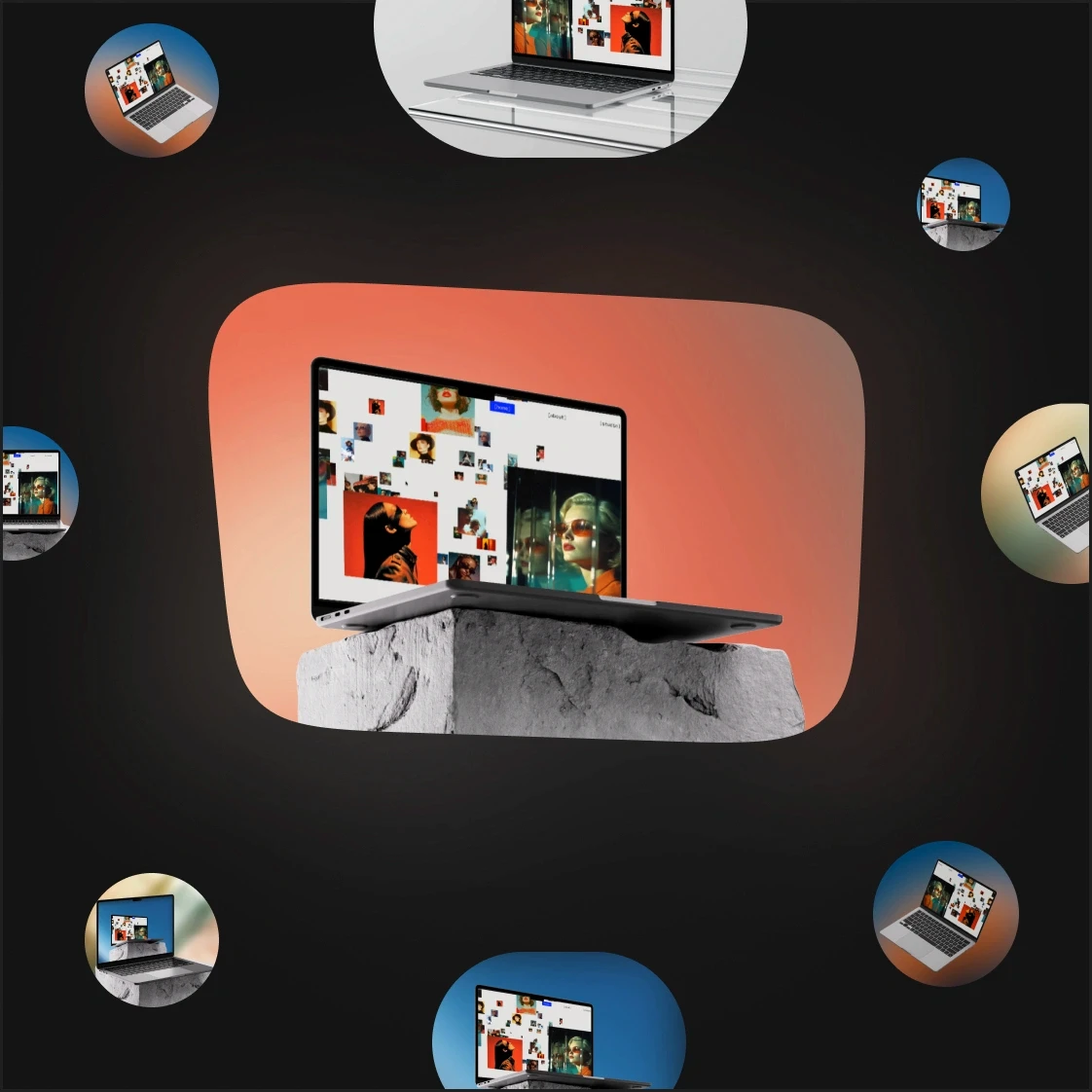
  • PreviewKit's device scene picker showing a MacBook mockup on a stone pedestal surrounded by other scene thumbnails

    30+ device scenes

    MacBook, MacBook Air, MacBook Pro, iMac and tablet, staged on glass, stone, concrete, wood and armchairs. Straight-on, angled, steep tilt — pick the perspective that fits your shot.

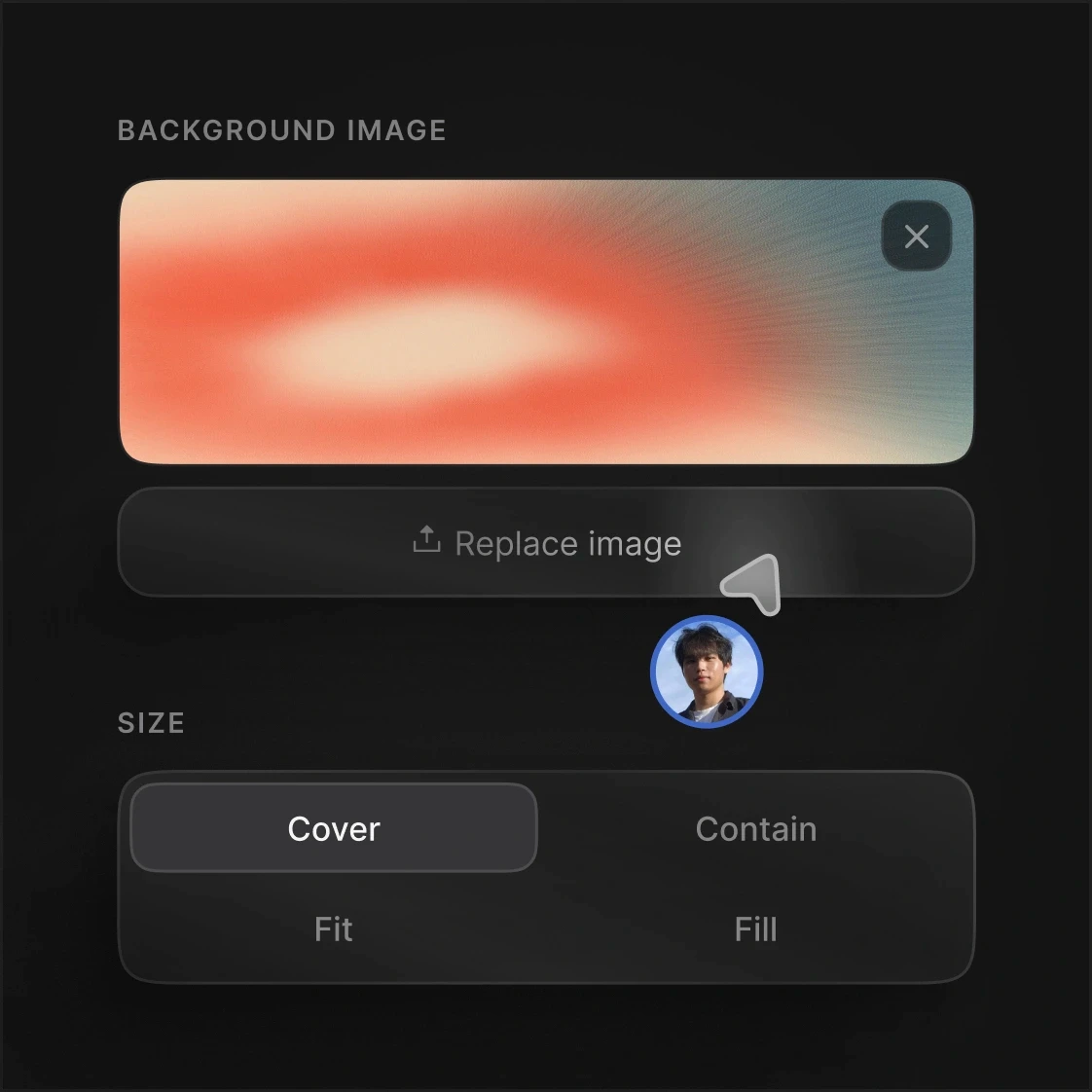
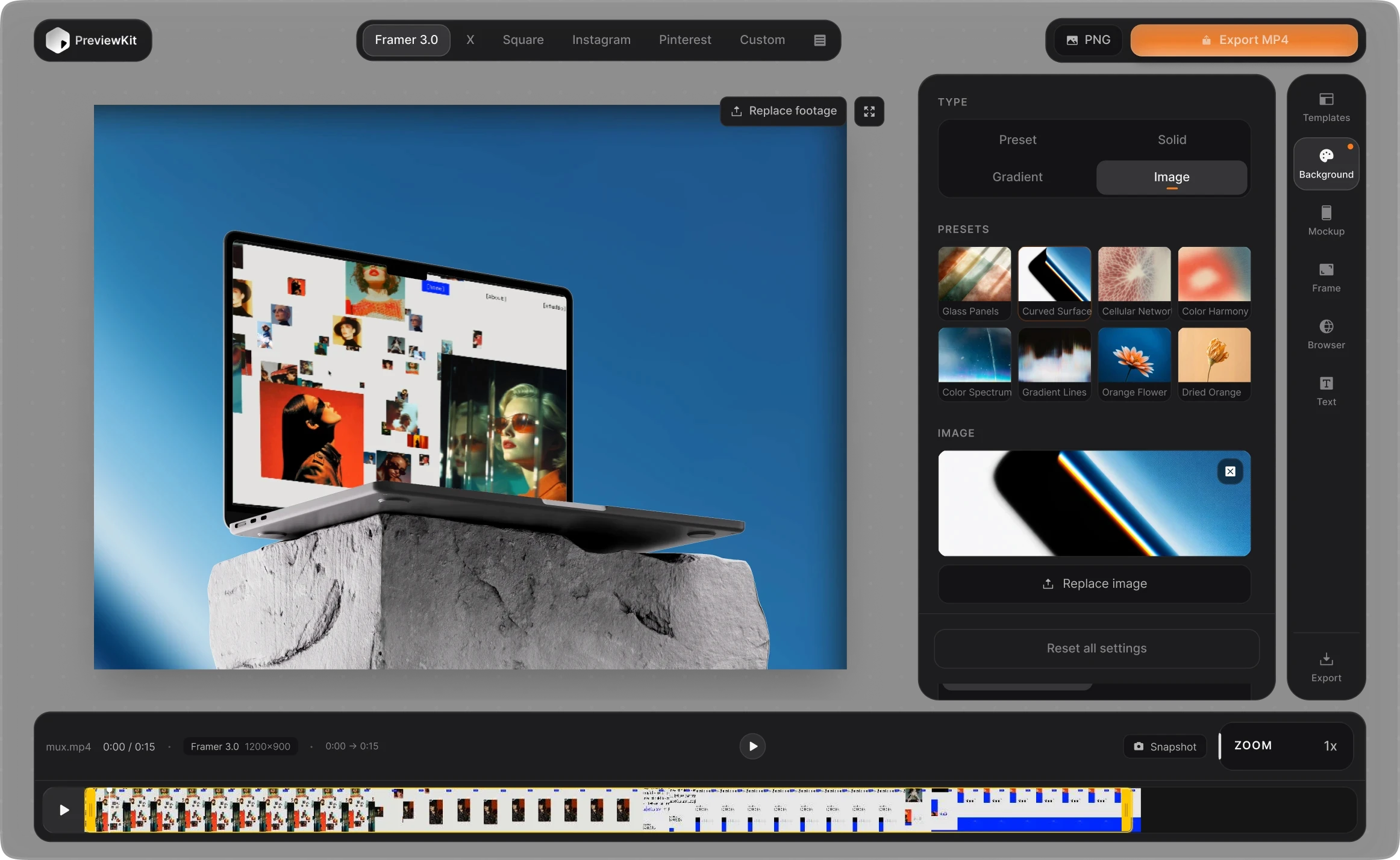
  • PreviewKit's background panel for uploading a custom image, with cover, contain, fit, and fill sizing options

    Backgrounds, your way

    Fixed studio scenes, or bring your own background behind a floating device. Solid colours, gradients, and a preset library of images ready to go.

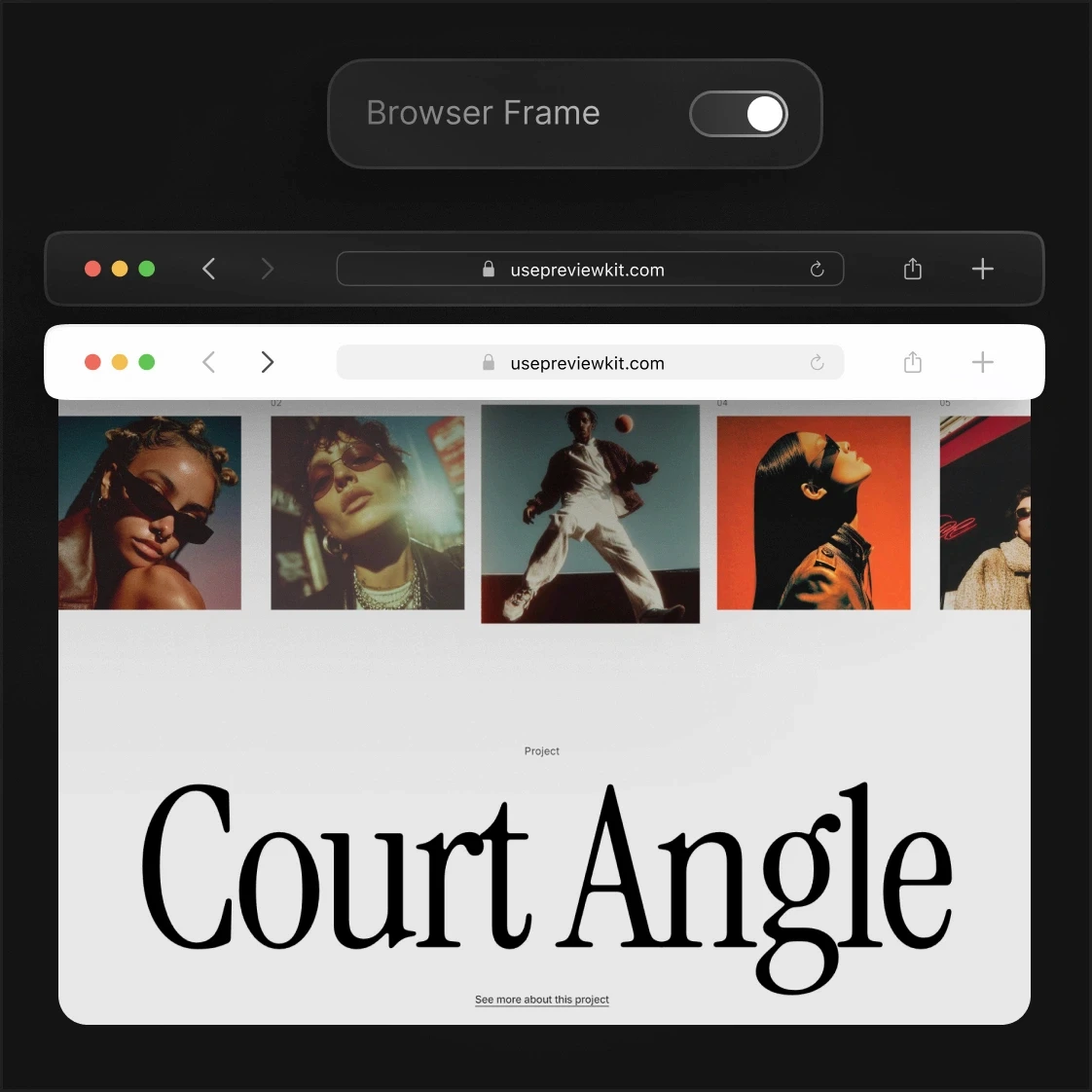
  • Browser frame toggle wrapping a fashion website screenshot in a clean browser window

    Browser frame

    Wrap web app footage in a clean browser chrome so it reads as a real product, not a cropped rectangle.

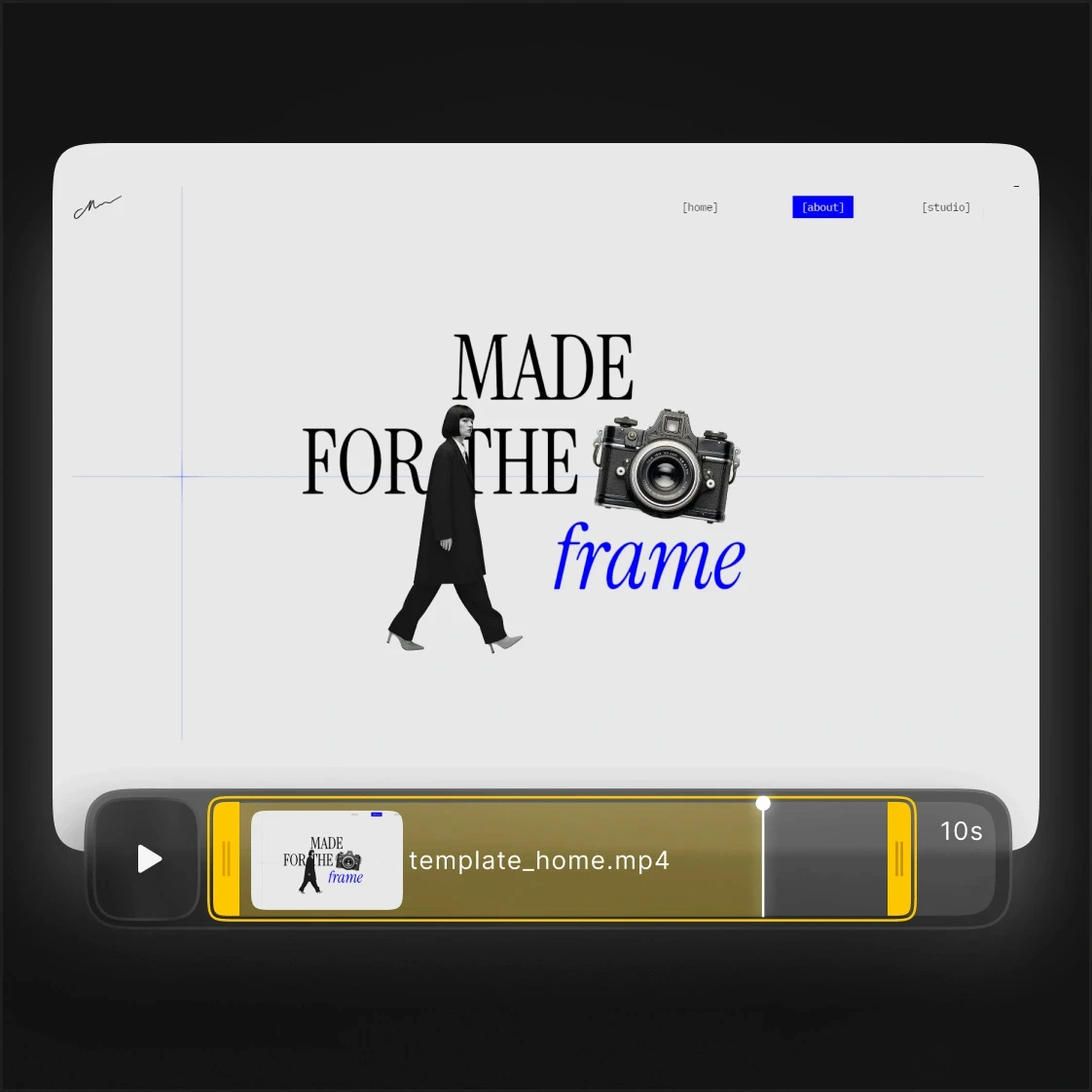
  • PreviewKit's timeline editor trimming a video template with animated title text

    Timeline trimming

    Cut the dead air at the start and the fumble at the end. Scrub, set your in and out points, done.

  • PreviewKit's device scene picker showing a MacBook mockup on a stone pedestal surrounded by other scene thumbnails

    30+ device scenes

    MacBook, MacBook Air, MacBook Pro, iMac and tablet, staged on glass, stone, concrete, wood and armchairs. Straight-on, angled, steep tilt — pick the perspective that fits your shot.

  • PreviewKit's background panel for uploading a custom image, with cover, contain, fit, and fill sizing options

    Backgrounds, your way

    Fixed studio scenes, or bring your own background behind a floating device. Solid colours, gradients, and a preset library of images ready to go.

  • Browser frame toggle wrapping a fashion website screenshot in a clean browser window

    Browser frame

    Wrap web app footage in a clean browser chrome so it reads as a real product, not a cropped rectangle.

  • PreviewKit's timeline editor trimming a video template with animated title text

    Timeline trimming

    Cut the dead air at the start and the fumble at the end. Scrub, set your in and out points, done.

One recording. Every size you need.

Most tools hand you a video and leave the resizing to you. PreviewKit exports to the dimensions each platform actually requires, so your submission clears on the first try.
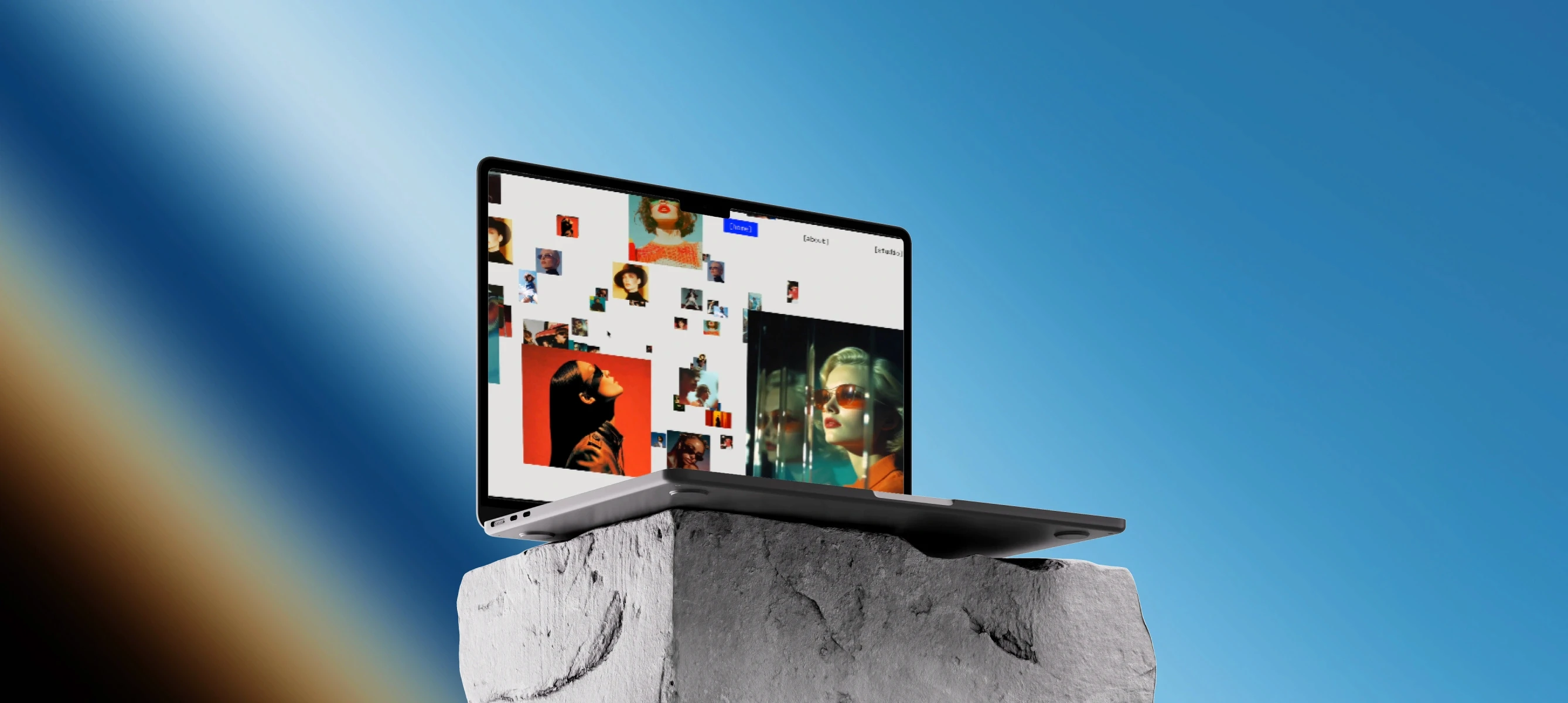
MacBook on stone product mockup scene rendered by PreviewKit
1200 × 900 px

Built different from the desktop apps.

The tools in this category want you to download something and learn a timeline. PreviewKit opens in a tab.

Nothing to install

No download, no licence key, no Mac requirement, no 400MB app

Orbit interface showing PreviewKit's browser-based controls with no download icon at the center

Sized right the first time

You aren't guessing dimensions or re-exporting after a rejection.

Size preset list showing Framer 3.0, X, Square, Instagram, Pinterest, and other marketplace-exact export options

Minutes, not an afternoon

Upload, choose a scene, trim, export

Grid of MacBook mockup scene thumbnails next to an Export MP4 button

Frequently Asked Questions

Sizes, formats, pricing, and what PreviewKit does and does not do.

What size does a Framer marketplace thumbnail need to be?

Framer 3.0 template previews are 1200x900 pixels. PreviewKit includes that as a built-in export preset, so you can size your video correctly before you export rather than discovering the problem after a rejected submission.

Can I use PreviewKit on Windows?

Yes. PreviewKit runs in the browser, so it works the same on Windows, macOS and Linux. Most tools in this category are macOS-only desktop apps, so Windows users usually have no equivalent option.

What can I export?

MP4 video for landing pages, social posts and marketplace submissions, plus PNG stills for thumbnails, documentation and social cards. You can grab a snapshot of any frame from the timeline.

Can I use my own background image?

Yes. Several scenes place the device over a background you supply, so you can upload your own image. You can also use a solid colour, a gradient, or pick from the built-in preset library.

Can I add a browser frame to my recording?

Yes. Web app footage can be wrapped in a clean browser window so it reads as a real product rather than a cropped rectangle.

How is PreviewKit different from Rotato or Screen Studio?

Rotato and Screen Studio are macOS applications with deep editing timelines, and they are very good at that. PreviewKit runs in your browser with nothing to install, and focuses on getting you one export-ready video quickly at the exact dimensions the platform you are submitting to requires. If you need frame-level motion editing, those tools do more. If you need a finished product video in a few minutes, PreviewKit is faster.

Is there a free plan?

Yes. The free plan includes unlimited PNG and JPG stills and two clean MP4 exports, with no watermark on either. Pro removes the video limit and unlocks the full mockup library.

Is there a one-time payment option?

Yes. Lifetime access is 149 USD as a single payment. It includes unlimited listing-ready video, the full mockup library and commercial use, with no recurring charge.

Do PreviewKit exports have a watermark?

No. Exports are clean on both the free and paid plans. The free plan limits how many MP4s you can export rather than adding a watermark.

What payment methods do you accept?

Apple Pay, Google Pay, and major credit and debit cards.

Do I need to install anything to use PreviewKit?

No. PreviewKit runs entirely in your browser on any modern desktop. There is nothing to download, no licence key, and no macOS requirement - which is the main difference between PreviewKit and desktop apps like Rotato or Screen Studio.

What video formats can I upload?

Screen recordings in MP4, MOV and WebM. Footage from QuickTime, OBS, your operating system built-in recorder, or a browser screen-capture extension will all work.

What export sizes does PreviewKit support?

Framer 3.0 at 1200x900, X at 1600x900, Square at 1080x1080, Instagram at 1080x1350, Pinterest at 1000x1500, and any custom dimensions you enter. Each preset matches what the platform actually requires, so the export is submission-ready.

What device mockups can I choose from?

MacBook, iMac and tablet scenes, staged on surfaces like glass, stone, concrete and wood. Some scenes are free and some are Pro, and you can preview every scene before deciding whether to upgrade.

Can I add text to my mockup video?

Yes. You can add text over the scene, which is useful for a headline on a marketplace preview or a caption on a social post.

Does PreviewKit work on mobile?

The editor is built for larger screens, so open PreviewKit on a laptop or desktop for the full experience.

How much does PreviewKit cost?

Pro is 12 USD per month, or 79 USD per year, which saves about 45 percent against the monthly price. There is also a one-time Lifetime option at 149 USD.

Can I cancel anytime?

Yes. Monthly and yearly plans can be cancelled at any time. The Lifetime option is a one-time payment, so there is nothing to cancel.

Can I use PreviewKit videos commercially?

Yes. Commercial use is included with Pro and Lifetime, so paid template listings, client work, ads and app store submissions are all covered. Full terms are in the licence.

Still have questions?

Anything this list does not cover, get in touch and we will answer it.

What size does a Framer marketplace thumbnail need to be?

Framer 3.0 template previews are 1200x900 pixels. PreviewKit includes that as a built-in export preset, so you can size your video correctly before you export rather than discovering the problem after a rejected submission.

Do I need to install anything to use PreviewKit?

No. PreviewKit runs entirely in your browser on any modern desktop. There is nothing to download, no licence key, and no macOS requirement - which is the main difference between PreviewKit and desktop apps like Rotato or Screen Studio.

Can I use PreviewKit on Windows?

Yes. PreviewKit runs in the browser, so it works the same on Windows, macOS and Linux. Most tools in this category are macOS-only desktop apps, so Windows users usually have no equivalent option.

What video formats can I upload?

Screen recordings in MP4, MOV and WebM. Footage from QuickTime, OBS, your operating system built-in recorder, or a browser screen-capture extension will all work.

What can I export?

MP4 video for landing pages, social posts and marketplace submissions, plus PNG stills for thumbnails, documentation and social cards. You can grab a snapshot of any frame from the timeline.

What export sizes does PreviewKit support?

Framer 3.0 at 1200x900, X at 1600x900, Square at 1080x1080, Instagram at 1080x1350, Pinterest at 1000x1500, and any custom dimensions you enter. Each preset matches what the platform actually requires, so the export is submission-ready.

Can I use my own background image?

Yes. Several scenes place the device over a background you supply, so you can upload your own image. You can also use a solid colour, a gradient, or pick from the built-in preset library.

What device mockups can I choose from?

MacBook, iMac and tablet scenes, staged on surfaces like glass, stone, concrete and wood. Some scenes are free and some are Pro, and you can preview every scene before deciding whether to upgrade.

Can I add a browser frame to my recording?

Yes. Web app footage can be wrapped in a clean browser window so it reads as a real product rather than a cropped rectangle.

Can I add text to my mockup video?

Yes. You can add text over the scene, which is useful for a headline on a marketplace preview or a caption on a social post.

How is PreviewKit different from Rotato or Screen Studio?

Rotato and Screen Studio are macOS applications with deep editing timelines, and they are very good at that. PreviewKit runs in your browser with nothing to install, and focuses on getting you one export-ready video quickly at the exact dimensions the platform you are submitting to requires. If you need frame-level motion editing, those tools do more. If you need a finished product video in a few minutes, PreviewKit is faster.

Does PreviewKit work on mobile?

The editor is built for larger screens, so open PreviewKit on a laptop or desktop for the full experience.

Is there a free plan?

Yes. The free plan includes unlimited PNG and JPG stills and two clean MP4 exports, with no watermark on either. Pro removes the video limit and unlocks the full mockup library.

How much does PreviewKit cost?

Pro is 12 USD per month, or 79 USD per year, which saves about 45 percent against the monthly price. There is also a one-time Lifetime option at 149 USD.

Is there a one-time payment option?

Yes. Lifetime access is 149 USD as a single payment. It includes unlimited listing-ready video, the full mockup library and commercial use, with no recurring charge.

Can I cancel anytime?

Yes. Monthly and yearly plans can be cancelled at any time. The Lifetime option is a one-time payment, so there is nothing to cancel.

Do PreviewKit exports have a watermark?

No. Exports are clean on both the free and paid plans. The free plan limits how many MP4s you can export rather than adding a watermark.

Can I use PreviewKit videos commercially?

Yes. Commercial use is included with Pro and Lifetime, so paid template listings, client work, ads and app store submissions are all covered. Full terms are in the licence.

What payment methods do you accept?

Apple Pay, Google Pay, and major credit and debit cards.

Still have questions?

Anything this list does not cover, get in touch and we will answer it.

Still curious who is behind PreviewKit? Read our story.

Pricing

Free while you are testing sizes. Upgrade when you are ready to publish.

Free

Free

For trying scenes and sizing before you commit.

$0

Forever

USAGE LIMITS

Unlimited PNG & JPG stills

2 MP4 exports

High quality video

No watermark

FEATURES

Browser-based editor, no install

Framer, X, Square, Instagram, Pinterest & Custom sizes

Free scene library preview

PNG snapshot from any frame

Pro

Pro

For templates, listings, and shipping fast.

$12

per month, or $79/yr

USAGE LIMITS

Unlimited MP4 exports

High & Ultra quality

No watermark

Commercial use included

FEATURES

Everything in Free

Full mockup & scene library

All backgrounds: glass, stone, concrete, wood, custom

Cancel anytime

Recommended

Lifetime

Lifetime

Pay once. Use PreviewKit for good.

$149

one-time

USAGE LIMITS

Unlimited MP4 exports

High & Ultra quality

No watermark

Commercial use included

FEATURES

Everything in Pro

One payment, forever

No subscription

Free future updates

Your next launch video is one upload away.

Record your screen, drop the file in, pick a scene. You’ll have something worth posting before your coffee goes cold.

PreviewKit editor showing a MacBook mockup scene with the background panel open